CBSE Class 9 Class 10 Syllabus 2023-24 Computer Applications
Finished viewing? Save it for later —
Download CBSE Class 9 Class 10 Syllabus 2023-24 Computer Applications (PDF · 6 pages)About CBSE Class 9 Class 10 Syllabus 2023-24 Computer Applications
CBSE Class 9 Class 10 Syllabus 2023-24 Computer Applications is available here for free download. Published by CBSE for Class 10, this syllabus can be viewed online or downloaded as a PDF (6 pages). Candidates preparing for Class 10 can use CBSE Class 9 Class 10 Syllabus 2023-24 Computer Applications to understand the exam pattern, the type of questions asked, and the overall difficulty level.
Frequently Asked Questions
How can I download CBSE Class 9 Class 10 Syllabus 2023-24 Computer Applications?
Open this page and click the Download button to save CBSE Class 9 Class 10 Syllabus 2023-24 Computer Applications as a PDF. It is completely free on AglaSem Docs.
Is CBSE Class 9 Class 10 Syllabus 2023-24 Computer Applications free to download?
Yes. CBSE Class 9 Class 10 Syllabus 2023-24 Computer Applications can be viewed online and downloaded as a PDF free of cost on AglaSem Docs.
How many pages does CBSE Class 9 Class 10 Syllabus 2023-24 Computer Applications have?
CBSE Class 9 Class 10 Syllabus 2023-24 Computer Applications contains 6 pages, which you can read online or download together as a single PDF.
Where can I find more Class 10 study material?
You can find more Class 10 question papers, sample papers, syllabus, and answer keys on AglaSem Docs.
CBSE Class 9 Class 10 Syllabus 2023-24 Computer Applications – Text
Read the full text of this syllabus below — useful to quickly search, copy and reference the content online without downloading the PDF.
📄 View text version (6 pages)
Page 1
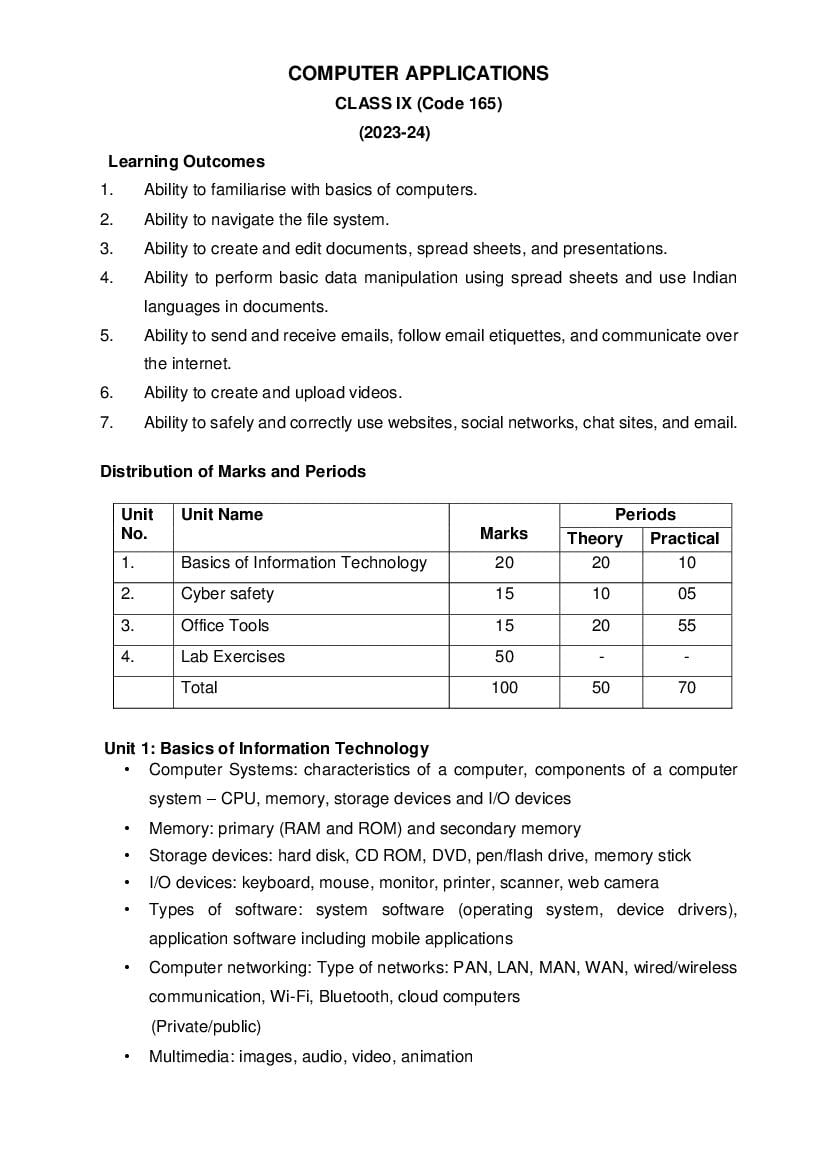
CLASS IX (Code 165)
(2023-24)
Learning Outcomes
1. Ability to familiarise with basics of computers.
2. Ability to navigate the file system.
3. Ability to create and edit documents, spread sheets, and presentations.
4. Ability to perform basic data manipulation using spread sheets and use Indian
languages in documents.
5. Ability to send and receive emails, follow email etiquettes, and communicate over
the internet.
6. Ability to create and upload videos.
7. Ability to safely and correctly use websites, social networks, chat sites, and email.
Distribution of Marks and Periods
Unit Unit Name Periods
No. Marks Theory Practical
1. Basics of Information Technology 20 20 10
2. Cyber safety 15 10 05
3. Office Tools 15 20 55
4. Lab Exercises 50 - -
Total 100 50 70
Unit 1: Basics of Information Technology
• Computer Systems: characteristics of a computer, components of a computer
system – CPU, memory, storage devices and I/O devices
• Memory: primary (RAM and ROM) and secondary memory
• Storage devices: hard disk, CD ROM, DVD, pen/flash drive, memory stick
• I/O devices: keyboard, mouse, monitor, printer, scanner, web camera
• Types of software: system software (operating system, device drivers),
application software including mobile applications
• Computer networking: Type of networks: PAN, LAN, MAN, WAN, wired/wireless
communication, Wi-Fi, Bluetooth, cloud computers
(Private/public)
• Multimedia: images, audio, video, animation
Page 2
• Safely browsing the web and using social networks: identity protection, proper
usage of passwords, privacy, confidentiality of information, cyber stalking,
reporting cybercrimes
• Malware: Viruses, adware
Unit 3: Office tools
• Introduction to a word processor: create and save a document.
• Edit and format text: text style (B, I, U), font type, font size, text colour, alignment
of text. Format paragraphs with line and/or paragraph spacing. Add headers and
footers, numbering pages, grammar and spell check utilities, subscript and
superscript, insert symbols, use print preview, and print a document.
• Insert pictures, change the page setting, add bullets and numbering, borders and
shading, and insert tables – insert/delete rows and columns, merge and split
cells.
• Use auto-format, track changes, review comments, use of drawing tools, shapes
and mathematical symbols.
• Presentation tool: understand the concept of slide shows, basic elements of a
slide, different types of slide layouts, create and save a presentation, and learn
about the different views of a slide set – normal view, slide sorter view and hand-
outs.
• Edit and format a slide: add titles, subtitles, text, background, and watermark,
headers and footers, and slide numbers.
• Insert pictures from files, create animations, add sound effects, and rehearse
timings.
• Spreadsheets: concept of a worksheet and a workbook, create and save a
worksheet.
• Working with a spreadsheet: enter numbers, text, date/time, series using auto fill;
edit and format a worksheet including changing the colour, size, font, alignment
of text; insert and delete cells, rows and columns. Enter a formula using the
operators (+,-,*, /), refer to cells, and print a worksheet.
• Use simple statistical functions: SUM (), AVERAGE (), MAX (), MIN (), IF ()
(without compound statements); embed charts of various types: line, pie, scatter,
bar and area in a worksheet.
Page 3
• Browser settings for a secure connection
• Working with the operating system: Navigation of the file system using a mouse
and keyboard.
• Word processing: create a text document; create a letter, report, and greeting
card.
• Create a text document with figures in it. It should describe a concept taught in
another course.
• Discuss the following in a text document about the basic organisation of a
computer: CPU, memory, input/output devices, hard disk.
• Create a text document in an Indian language other than English.
• Create a presentation.
• Create a presentation with animation.
• Include existing images/ pictures in a presentation.
• Animate pictures and text with sound effects in a presentation
• Create a simple spreadsheet and perform the following operations: min, max,
sum, and average.
• Create different types of charts using a spreadsheet: line, bar, area and pie.
Breakup of marks for the Practicals:
S.No. Unit Name Marks
1. Lab Test (30 marks)
Word processing 10
Handling spreadsheets 10
Creating presentations 10
2. Report File + viva (10 marks)
Report file: 8
• 4 documents each with a word processor,
spreadsheet, and presentation tool
Viva voce (based on the report file) 2
3. Project (that uses most of the concepts that have been learnt) (10 marks)
Total Marks 50
Page 4
CLASS X (Code 165)
(2023-24)
Learning Outcomes
1. Ability to create a simple website
2. Ability to embed images, audio and video in an HTML page
3. Ability to use style sheets to beautify the web pages.
4. Ability to Interface a web site with a web server and record the details of a user's
request.
5. Ability to follow basic cyber ethics
6. Ability to familiarize with network concepts.
Distribution of Marks and Periods
Unit Unit Name Marks Periods
No.
Theory Practical
1. Networking 15 17 05
2. HTML 25 30 50
3. Cyber ethics 10 08 10
4. Practicals 50 - -
Total 100 55 65
Unit 1: Networking
• Internet: World Wide Web, web servers, web clients, web sites, web pages, web
browsers, blogs, news groups, HTML, web address, e-mail address,
downloading and uploading files from a remote site.
• Internet protocols: TCP/IP, SMTP, POP3, HTTP, HTTPS. Remote login and file
transfer protocols: SSH, SFTP, FTP, SCP, TELNET, SMTP, TCP/IP.
• Services available on the internet: information retrieval, locating sites using
search engines and finding people on the net;
• Web services: chat, email, video conferencing, e-Learning, e-Banking,
eShopping, e-Reservation, e-Governance, e-Groups, social networking.
• Mobile technologies: SMS, MMS, 3G, 4G.
Unit 2: HTML
• Introduction to web page designing using HTML: create and save an HTML
document, access a web page using a web browser.
Page 5
vlink, alink), br (break), hr(horizontal rule), inserting comments, h1..h6 (heading),
p (paragraph), b (bold), i (italics), u (underline), ul (unordered list), ol (ordered
list), and li (list item). Description lists: dl, dt and dd. Attributes of ol (start, type),
ul (type).
• Font tags (attributes: face, size, color).
• Insert images: img (attributes: src, width, height, alt), sup (super script), sub
(subscript).
• HTML Forms: Textbox, radio buttons, checkbox, password, list, combobox.
• Embed audio and video in a HTML page.
• Create a table using the tags: table, tr, th, td, rowspan, colspan
• Links: significance of linking, anchor element (attributes: href, mailto), targets.
• Cascading style sheets: colour, background-colour, border-style, margin, height,
width, outline, font (family, style, size), align, float.
Unit 3: Cyber ethics
• Netiquettes.
• Software licenses and the open source software movement.
• Intellectual property rights, plagiarism and digital property rights.
• Freedom of information and the digital divide.
• E-commerce: Privacy, fraud, secure data transmission.
4. Lab Exercises
• Create static web pages.
• Use style sheets to enforce a format in an HTML page (CSS).
• Embed pictures, audio and videos in an HTML page.
• Add tables and frames in an HTML page.
• Decorate web pages using graphical elements.
• Create a website using several web pages. Students may use any open source
or proprietary tool.
• Work with HTML forms: text box, radio buttons, checkbox, password, list, combo
box.
• Write a blog using HTML pages discussing viruses, malware, spam and
antiviruses
• Create a web page discussing plagiarism. List some reported cases of plagiarism
and the consequent punishment meted out. Explain the nature of the punishment
in different countries as per their IP laws.
Page 6
S. No. Unit Name Marks
1. Lab Test
(20 marks)
HTML (design one web page based on a diagram) 20
2. Report File + viva
(20 marks)
Report file: At least 10 HTML pages
15
Viva voce (based on the report file)
5
3. Project (that uses most of the concepts that have been learnt)
(10 marks)
Total (50 marks)
Document Details
| Board / Org | CBSE |
| Exam | Class 10 |
| Type | Syllabus |
| Pages | 6 |
| Updated | 15 Jul 2026 |