Goa Board Class 12 Sample Paper 2023 Computer Application
Finished viewing? Save it for later —
Download Goa Board Class 12 Sample Paper 2023 Computer Application (PDF · 13 pages)About Goa Board Class 12 Sample Paper 2023 Computer Application
Goa Board Class 12 Sample Paper 2023 Computer Application is available here for free download. Published by Goa Board for Class 12, this sample paper can be viewed online or downloaded as a PDF (13 pages). Candidates preparing for Class 12 can use Goa Board Class 12 Sample Paper 2023 Computer Application to understand the exam pattern, the type of questions asked, and the overall difficulty level.
Frequently Asked Questions
How can I download Goa Board Class 12 Sample Paper 2023 Computer Application?
Open this page and click the Download button to save Goa Board Class 12 Sample Paper 2023 Computer Application as a PDF. It is completely free on AglaSem Docs.
Is Goa Board Class 12 Sample Paper 2023 Computer Application free to download?
Yes. Goa Board Class 12 Sample Paper 2023 Computer Application can be viewed online and downloaded as a PDF free of cost on AglaSem Docs.
How many pages does Goa Board Class 12 Sample Paper 2023 Computer Application have?
Goa Board Class 12 Sample Paper 2023 Computer Application contains 13 pages, which you can read online or download together as a single PDF.
Where can I find more Class 12 study material?
You can find more Class 12 question papers, sample papers, syllabus, and answer keys on AglaSem Docs.
Goa Board Class 12 Sample Paper 2023 Computer Application – Text
Read the full text of this sample paper below — useful to quickly search, copy and reference the content online without downloading the PDF.
📄 View text version (13 pages)
Page 1
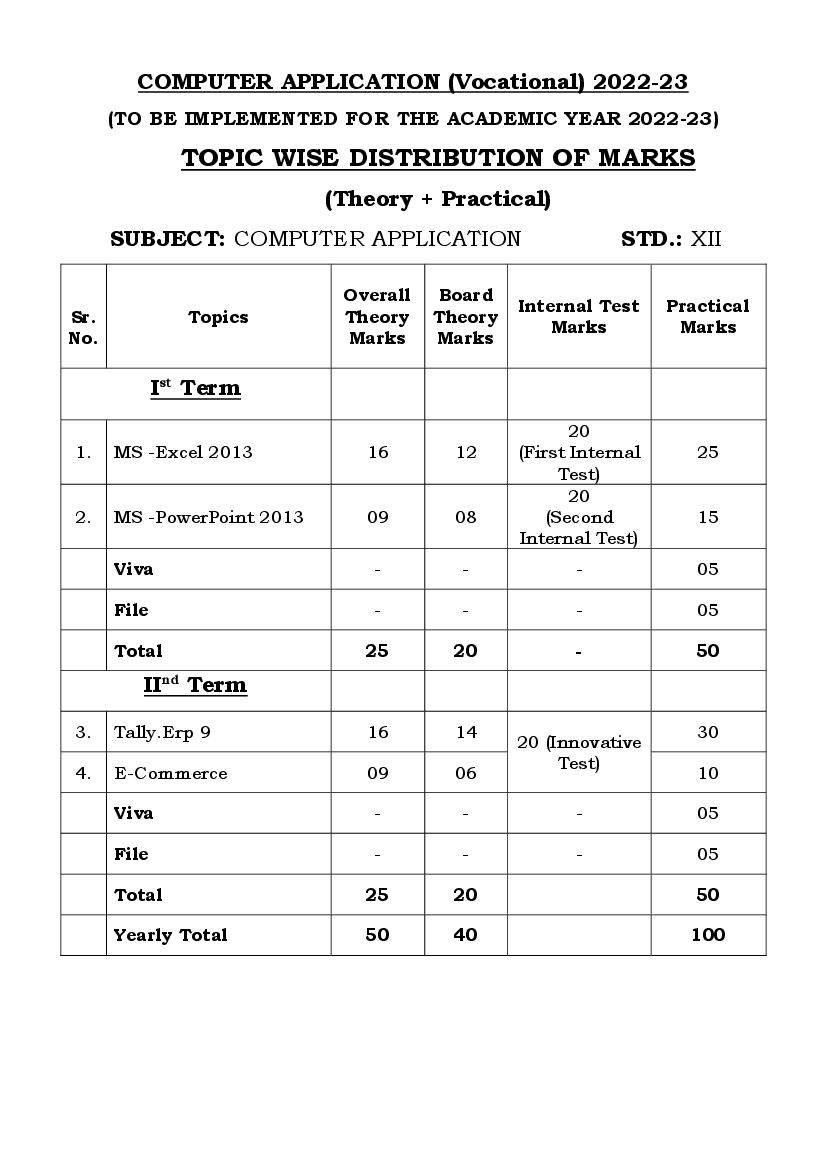
(TO BE IMPLEMENTED FOR THE ACADEMIC YEAR 2022-23)
TOPIC WISE DISTRIBUTION OF MARKS
(Theory + Practical)
SUBJECT: COMPUTER APPLICATION STD.: XII
Overall Board
Internal Test Practical
Sr. Topics Theory Theory
Marks Marks
No. Marks Marks
Ist Term
20
1. MS -Excel 2013 16 12 (First Internal 25
Test)
20
2. MS -PowerPoint 2013 09 08 (Second 15
Internal Test)
Viva - - - 05
File - - - 05
Total 25 20 - 50
IInd Term
3. Tally.Erp 9 16 14 30
20 (Innovative
Test)
4. E-Commerce 09 06 10
Viva - - - 05
File - - - 05
Total 25 20 50
Yearly Total 50 40 100
Page 2
I TERM BOARD EXAM (All 20 MCQ Questions)………….……………...…….… 20Marks
II TERM BOARD EXAM (Subjective Paper) - No MCQ Questions to be asked..…..20Marks
INTERNAL TEST MARKS (Average) ………...……………………………………. 10Marks
(1st Internal test + 2nd Internal Test + Innovative Test/6 = 20+20+20/6)
TOTAL ……………………………………………………………………………… 50Marks
PRACTICAL’S ARE TO BE CONDUCTED AS PER CONTINUOUS AND
COMPREHENSIVE EVALUATION (CCE)
SUB: COMPUTER APPLICATION
FIRST TERM
Unit Topics
I MS- EXCEL 2013
INTRODUCTION
➢ Importance of Ms-Excel-2013
➢ Steps to create a new workbook
➢ Steps to save a workbook
➢ Steps to open a workbook
➢ Steps to print a workbook
EXCEL TERMINOLOGIES
➢ Workbook, Worksheet, Chart Sheet, Column, Row, Cell,
Active cell, Range, Formula, Functions
EXCEL BASICS
➢ Steps to insert row, delete row, insert Column, delete
column, increase/decrease row height, increase/decrease
column width, hide row, unhide row, hide column, unhide
column, insert sheet, delete sheet, rename sheet
➢ Auto Fill, Steps to get incremented number, to get the
months
EXCEL FUNCTIONS
➢ Functions –Sum, Average, Product, Min, Max, Now, Count,
Counta, Countblank, If, Sumif, Countif
HOME TAB
Page 3
➢ Cut, Copy, Paste, Format Painter, Steps to use format
Painter
B) FONT GROUP
➢ Font, Font Size, Increase Font Size, Decrease Font Size,
Bold, Italic, Underline, Fill Color, Font Color, Borders, Steps
to apply border
C) ALIGNMENT GROUP
➢ Alignment- Align Left, Center, Align Right, Top Align, Middle
Align, Bottom Align
➢ Orientation
➢ Wrap Text
➢ Merge & Center, Merge Across,Merge Cells, Unmerge Cells
D) NUMBER GROUP
E) STYLES GROUP
➢ Conditional Formatting, Steps to apply conditional
formatting
INSERT TAB
A) CHARTS GROUP
➢ Column Chart
➢ Steps to insert column chart
➢ Steps to set the chart title
➢ Steps to move the chart on a new sheet
➢ Steps to change the chart type
B) TABLES GROUP
➢ PivotTable
➢ Steps to insert PivotTable
PAGE LAYOUT TAB
A) PAGESETUP GROUP
➢ Margins - Steps to change the margin of a page
➢ Orientation - Steps to change the orientation of a page
➢ Sizes - Steps to change the size of a page,
➢ Print Area - Steps to set/clear the Print Area
➢ Breaks - Steps to apply/remove page break
• Background - Steps to apply/remove background
• Print Titles, Steps to apply/remove print titles
DATA TAB
A) SORT & FILTER GROUP
➢ Sorting/Data Sort: Steps to sort a database
Page 4
Filter/Auto Filter, Advance/Advance Filter - Steps to apply
Advance/Advance Filter
B) DATA TOOLS GROUPS:
➢ Data Validation The steps to set/clear data validation
➢ What – if – Analysis – Goal seel - Steps for Goal seek
REVIEW TAB
A) CHANGES GROUP
➢ Protect Sheet - Steps to protect/unprotect a worksheet
➢ Protect Workbook - Steps to protect/unprotect a workbook
B) COMMENT GROUP
➢ New Comment - Steps to set/ edit/ delete/ show/ hide the
comment
VIEW TAB
A) WINDOWS GROUP
➢ Freezing - Freeze First Column - Steps to Freeze First
Column
➢ Freeze Top Row - Steps to Freeze Top Row
➢ Freeze Panes - Steps to Freeze Pane
➢ Unfreeze Panes -Steps to Unfreeze Panes
➢ Split A Worksheet - Steps to split/remove split a worksheet
➢ Hide - Steps to Hide/unhide the workbook
➢ Switch Windows - Steps to Switch Windows
➢ Arrange All, New Window
B) ZOOM GROUP
➢ Zoom to Selection- Steps to use zoom to selection
C) SHOW GROUP
➢ Gridlines - Steps to hide the gridlines
➢ Headings - Steps to hide the Headings
➢ Formula Bar -Steps to hide the Formula Bar
D) WORKBOOK VIEWS GROUP
➢ Normal View, Page Break Preview, Page Layout
LAB EXERCISES (PRACTICAL)
II MS – POWERPOINT 2013
INTRODUCTION
Steps to start Ms-PowerPoint 2013
Steps to shut down/close Ms-PowerPoint 2013
Steps to save a presentation
Steps to open a presentation
Page 5
PowerPoint Basic
Understanding Slides and Slide Layouts
Different slide layouts
1) Title Slide
2) Title and Content
3) Two Content
4) Comparison
5) Title Only
6) Blank
HOME TAB
A) CLIPBOARD GROUP
➢ Cut, Copy, Paste, Format Painter, Steps to use format
Painter
B) SLIDES GROUP:
➢ New Slide, Steps to add a new slide to the presentation
➢ Layout, Steps to change the layout of slide
C) FONT GROUP
➢ Font, Font Size, Increase Font Size, Decrease Font Size,
Bold, Italic, Underline, Text Shadow, Strikethrough,
Character Spacing, Change Case, Font Color, Clear
Formatting
D) PARAGRAPH GROUP
➢ Align Left, Center, Align Right, Justify
➢ Add or Remove Column, Steps to split text into columns
➢ Bulltets, Numbering, Decrease List Level, Increase List
Level, Line Spacing, Text Direction, Align Text
➢ Convert to SmartArt, Steps to convert Text to SmartArt
E) DRAWING GROUP
➢ Shapes, Steps to draw a shape, Steps to fill a shape with a
picture
➢ Arrange, Bring to Front, Send to Back, Bring Forward,
Send Backward
➢ Group objects, Steps to group the objects, Steps to
ungroup the objects
INSERT TAB
A) SLIDES GROUP
B) TABLES GROUP
➢ Steps to insert table
C) IMAGES GROUP
➢ Picture: Steps to insert picture
➢ Photo Album, Steps to create photo album
Page 6
➢ Shapes
➢ SmartArt, Steps to insert SmartArt graphics
➢ Chart, Steps to insert Chart
D) LINKS GROUP
➢ Hyperlink, Steps to create a link
➢ Action, Steps to set the action for the object
E) TEXT GROUP
➢ Text Box, WordArt, Header & Footer, Date & Time, Slide
Number
➢ To insert Header & Footer/ Date & Time/ Slide Number
F) SYMBOLS GROUP
➢ Equation
➢ Symbol, Steps to insert symbol
G) MEDIA GROUP
➢ Video, Steps to insert a video file
➢ Audio, Steps to insert a audio file
DESIGN TAB
A) THEMES GROUP
➢ Steps to apply Design to your presentation
TRANSITIONS TAB
A) TRANSITION TO THIS SLIDE GROUP
➢ Transition, Steps to apply transition to your presentation
ANIMATIONS TAB
A) ANIMATION GROUP
➢ Animation, Steps to apply animation to your presentation
➢ Animation Painter, Steps to use Animation Painter
SLIDE SHOW TAB
A) START SLIDE SHOW GROUP
➢ From Beginning, From Current Slide
B) SET UP GROUP
➢ Hide Slide
VIEW TAB
A) PRESENTATION VIEWS GROUP
➢ Normal, Outline View, Slide Sorter View, Notes Page,
Reading View, Slide Show View
Page 7
Unit Topics
III TALLY.ERP 9
➢ Steps to start Tally.erp9
➢ Steps to create company in Tally.erp9
➢ Steps to select a company in Tally.erp9
➢ Steps to alter a company in Tally.erp9
➢ Steps to close a company in Tally.erp9
➢ Steps to delete a company in Tally.erp9
➢ List of Different groups and subgroups available in
Tally.erp9
➢ Steps to create ledgers in Tally.erp9
➢ Steps to display ledgers in Tally.erp9
➢ Steps to alter ledgers in Tally.erp9
➢ Steps to delete ledgers in Tally.erp9
➢ Steps to create multiple ledgers in Tally.erp9
➢ What are stock groups?
➢ Steps to create stock groups
➢ Steps to display/alter/delete stock groups
➢ What is units of measure?
➢ Steps to create units of measure
➢ Steps to display/alter/delete units of measure
➢ What are stock items?
➢ Steps to create stock items
➢ Steps to display/alter/delete stock items
➢ Different types of Accounting Vouchers in Tally.erp9
o F4 – Contra Voucher, F5 – Payment Voucher, F6 –
Receipt Voucher, F7 – Journal Voucher, F8 – Sales
Voucher, F9 – Purchase Voucher
➢ Steps to create Voucher Entry in Tally.erp9
➢ What is Day Book?
➢ Steps to display Day Book
➢ Steps to display Vouchers Entry
➢ Steps to alter Vouchers Entry
➢ Steps to delete Vouchers Entry
➢ Steps to cancel Vouchers Entry
➢ Different reports in Tally.erp9
➢ Display Menu
o Day Book
o Trial Balance
o Accounts Book
▪ Cash/Bank Book
▪ Ledger
Page 8
▪ Purchase Register
▪ General Register
➢ Steps in Viewing and Printing Reports
o Profit & Loss
o Balance Sheet
➢ What is Backup?
➢ Steps to Backup a company
➢ What is Restore?
➢ Steps to Restore a company
LAB EXERCISES (PRACTICAL)
IV E-COMMERCE
What is E-Commerce, B2B, B2C, C2C, E-banking, E-ticketing,
E-shopping, Advantages of E-commerce, Disadvantages of E-
commerce
Goa Board of Secondary & Higher Secondary Education
Alto, Betim – Goa
MODEL QUESTION PAPER FOR THE FIRST TERM FOR THE YEAR 2022-23
Subject: Computer Application Subject Code: 4233
Std: XII Max. Marks: 20 Time: 60 minutes (1 hour)
Instructions:
i) All questions are compulsory.
ii) There are total 20 Multiple Choice Questions.
1. Excel File is termed as _________ (1)
A) Worksheet
B) Workbook
C) Pages
D) Document
2. Total number of columns in Ms-Excel worksheet are __________ (1)
A) 16384
B) 16438
C) 16834
D) 16483
3. Horizontal block of cells on excel worksheet is termed as __________ (1)
A) Cell
B) Column
C) Row
D) Active cell
4. In Ms-Excel, Graphical representation of numeric data is termed as ______ (1)
A) Legend
Page 9
C) Horizontal Axis
D) Chart
5. In Ms- Excel, Feature that is used to format the data based on condition is ____ (1)
A) Common formatting
B) Conditional formatting
C) Clear formatting
D) Class formatting
6. The address of 8th column in excel worksheet is _______ (1)
A) B
B) A
C) H
D) K
7. The feature that can be used to protect the data from a worksheet is ______ (1)
A) Protect workbook
B) Protect worksheet
C) Protect cell
D) Protect range
8. Arranging data in alp (1)
habetical order of A to Z is or Z to A is termed as ______
A) Freezing
B) Sorting
C) Filtering
D) Scanning
9. The address of the cell which falls in M column and 18th row is ______ (1)
A) M18
B) 18M
C) M
D) 18
10. Key combination used to print data in Ms-Excel is _______ (1)
A) Alt + P
B) Ctrl + P
C) Alt + Ctrl+ P
D) Delete + P
11. In Ms-Excel. Feature that converts group of cells to single cell is _______ (1)
A) Split
B) Divide
C) Wrap text
D) Merge & Center
12. In Ms-Excel, Content of the cell is displayed in ______________ (1)
A) Name box
B) Formula bar
C) Title bar
D) Standard bar
13. In Ms-PowerPoint, the default slide layout is _________ (1)
A) Title and Content slide
Page 10
C) Comparison Slide
D) Title Only
14. Ms-PowerPoint is used to make effective _________ (1)
A) Accounting
B) calculation
C) Presentation
D) Data handling
15. Effect given to the content of slide is ___________ (1)
A) Animation effect
B) Formatting effect
C) Paragraph effect
D) Font effect
16. In Ms- PowerPoint, view that shows the slides in a miniature form is _______ (1)
A) Slide show
B) Notes page view
C) Normal View
D) Slide sorter view
17. In Ms PowerPoint. Function Key F5 is used to __________ (1)
A) Start Presentation
B) Close Presentation
C) Continue Presentation
D) Pause presentation
18. In Ms-PowerPoint, Blank slide consist of ________ (1)
A) One placeholder
B) Zero placeholder
C) Two placeholder
D) Three placeholder
19. In Ms-PowerPoint, the group that is available under Insert tab is _______ (1)
A) Clipboard
B) Font
C) Paragraph
D) Media Clips
20. In Ms-PowerPoint, Default slide orientation is ________ (1)
A) Landscape
B) Portrait
C) diagonal
D) straight
************************
Page 11
BLUE PRINT H.S.S.C. Examination (First Term 2022-23)
Duration: 1 Hr. Maximum Marks: 20 Subject: Computer Application
Objective Knowledge Understanding Application
Grand
Content Area
MCQ VSA SA-I SA-2 Total MCQ VSA SA-I SA-2 Total MCQ VSA SA-I SA-2 Total Total
(1m) (1m) (2m) (3m) Mks. (1m) (1m) (2m) (3m) Mks. (1m) (1m) (2m) (3m) Mks.
Ms-Excel 5(1) - - - 5 mks 5(1) - - - 2(1) - - - 2 mks 12 mks
Ms-PowerPoint 4(1) - - - 4 mks 4(1) - - - - - - - - 08 mks
Total 9(1) - - - 9 mks 9(1) - - - 2(1) - - - 2 mks 20 mks
Note: i) Figure outside the bracket indicates Questions.
ii) Figure within the bracket indicates Marks.
Weightage over different dimension of question paper
Topic Theory Marks Percentage
Knowledge 09 marks 45%
Understanding 09 marks 45%
Application 02 marks 10%
Total 20 marks 100%
Page 12
Betim – Goa
MODEL QUESTION PAPER FOR THE SECOND TERM FOR THE YEAR 2022-23
Subject: Computer Application Subject Code: 4233
Std: XII Max. Marks: 20 Time: 60 minutes (1 hour)
Instructions:
i) There are three sections in this question paper (A, B & C)
ii) In Section A there are four questions of which question no. 1
& 2 are to be answered in a word, phrase or figure and question
no. 3 & 4 are to be answered in one sentence each.
iii) Figures to the right indicate marks allotted to each question.
iv) Write the number of each question clearly on the answer book.
v) Answer all question from Section A and Section B
vi) Answer any two questions from Section C.
SECTION A
1. Name the term used for online trading of goods and services. (1)
2. Name the function key used to enter contra voucher in Tally. (1)
3. What is E-Ticketing? (1)
4. What is Restore of data in Tally? (1)
SECTION B
5. Write any four advantages of online shopping. (2)
6. Mention any four popular services covered under E-banking. (2)
7. Write the steps to display day book in Tally. (2)
8. Name any four ledger groups available in Tally. (2)
9. Write any two advantages of Tally. (2)
SECTION C (Answer any two questions)
10. Write the steps to create company “M. G. Traders” in Tally. (3)
11. State the procedure to delete ledger account in Tally. (3)
12. Write the steps to alter voucher in Tally (3)
*******
Page 13
BLUE PRINT H.S.S.C. Examination (Second Term 2022-23)
Duration: 1 Hr. Maximum Marks: 20 Subject: Computer Application
Objective Knowledge Understanding Application
Grand
Content Area
MCQ VSA SA-I SA-2 Total MCQ VSA SA-I SA-2 Total MCQ VSA SA-I SA-2 Total Total
(1m) (1m) (2m) (3m) Mks. (1m) (1m) (2m) (3m) Mks. (1m) (1m) (2m) (3m) Mks.
Tally Erp 9 - - 2(2) - 4 mks - 2(1) 1(2) 1(3) 7 mks - - - 1(3) 3 mks 14 mks
E-Commerce - 1(1) 2(2) - 5 mks - - - - - - 1(1) - - 1 mk 6 mks
Total - 1(1) 4(2) - 9 mks - - - - 7 mks - - - - 4 mks 20 mks
Note: i) Figure outside the bracket indicates Questions.
ii) Figure within the bracket indicates Marks.
Weightage over different dimension of question paper
Topic Theory Marks Percentage
Knowledge 09 marks 45%
Understanding 07 marks 35%
Application 04 marks 20%
Total 20 marks 100%
Document Details
| Board / Org | Goa Board |
| Exam | Class 12 |
| Type | Sample Paper |
| Pages | 13 |
| Updated | 30 Apr 2026 |