Goa Board Class 12 Sample Paper 2027 Software Application
Finished viewing? Save it for later —
Download Goa Board Class 12 Sample Paper 2027 Software Application (PDF · 16 pages)About Goa Board Class 12 Sample Paper 2027 Software Application
Goa Board Class 12 Sample Paper 2027 Software Application is available here for free download. Published by Goa Board for Class 12, this sample paper can be viewed online or downloaded as a PDF (16 pages). Candidates preparing for Class 12 can use Goa Board Class 12 Sample Paper 2027 Software Application to understand the exam pattern, the type of questions asked, and the overall difficulty level.
Frequently Asked Questions
How can I download Goa Board Class 12 Sample Paper 2027 Software Application?
Open this page and click the Download button to save Goa Board Class 12 Sample Paper 2027 Software Application as a PDF. It is completely free on AglaSem Docs.
Is Goa Board Class 12 Sample Paper 2027 Software Application free to download?
Yes. Goa Board Class 12 Sample Paper 2027 Software Application can be viewed online and downloaded as a PDF free of cost on AglaSem Docs.
How many pages does Goa Board Class 12 Sample Paper 2027 Software Application have?
Goa Board Class 12 Sample Paper 2027 Software Application contains 16 pages, which you can read online or download together as a single PDF.
Where can I find more Class 12 study material?
You can find more Class 12 question papers, sample papers, syllabus, and answer keys on AglaSem Docs.
Goa Board Class 12 Sample Paper 2027 Software Application – Text
Read the full text of this sample paper below — useful to quickly search, copy and reference the content online without downloading the PDF.
📄 View text version (17 pages)
Page 1
Goa Board Class 12
Sample Paper 2027
Software Application
EXAM YEAR TYPE
Goa Class 12 2027 Sample Paper
Notes · Sample Papers · Previous Year Papers · Mock Tests
Page 2
m .co
m .co s e m
se g l a
a
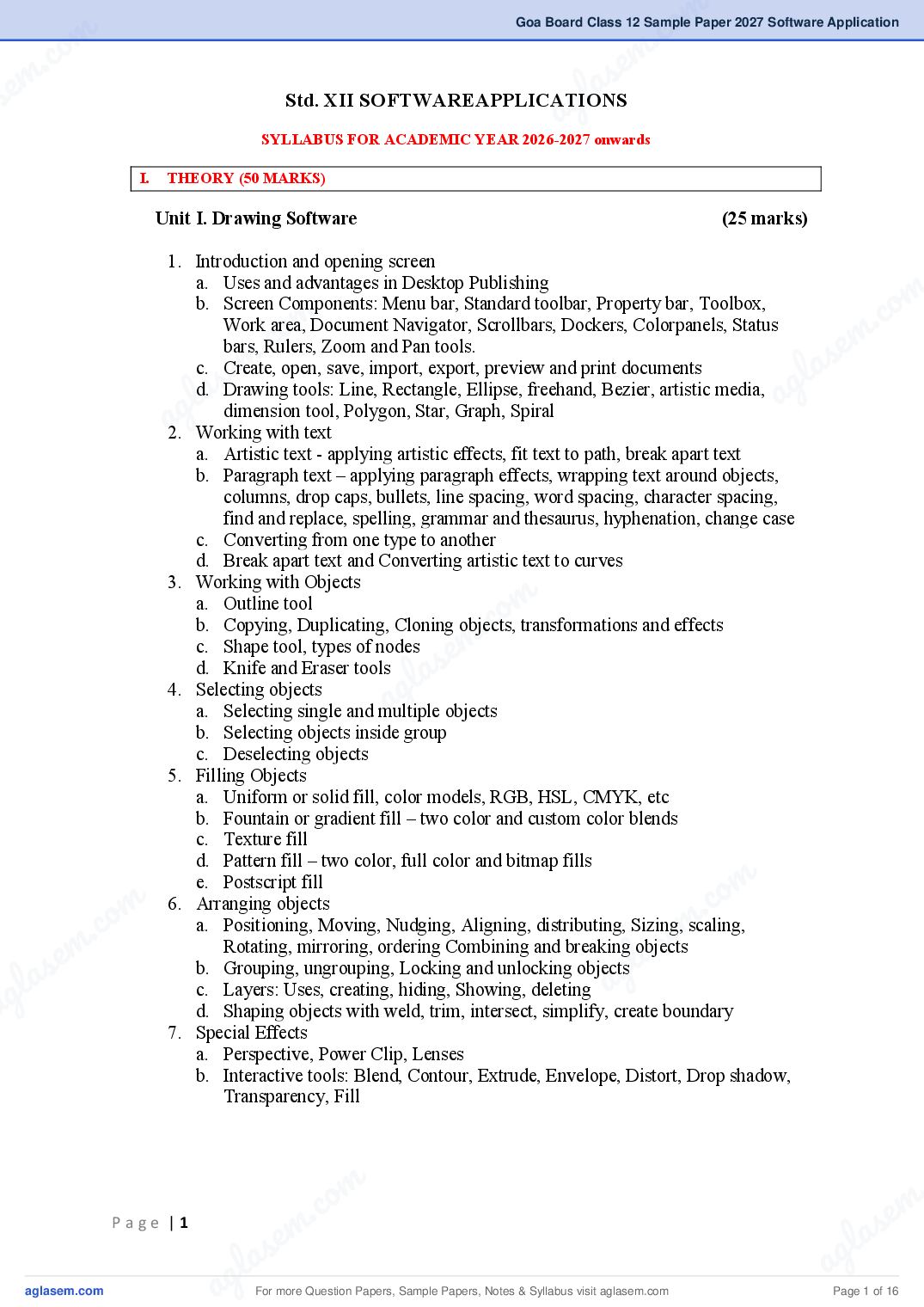
Std. XII SOFTWAREAPPLICATIONS
SYLLABUS FOR ACADEMIC YEAR 2026-2027 onwards
I. THEORY (50 MARKS)
Unit I. Drawing Software (25 marks)
1. Introduction and opening screen
a. Uses and advantages in Desktop Publishing
m
m .co
b. Screen Components: Menu bar, Standard toolbar, Property bar, Toolbox,
.co m
Work area, Document Navigator, Scrollbars, Dockers, Colorpanels, Status
m
bars, Rulers, Zoom and Pan tools.
s e
s e l a
ag
c. Create, open, save, import, export, preview and print documents
g l a
d. Drawing tools: Line, Rectangle, Ellipse, freehand, Bezier, artistic media,
a dimension tool, Polygon, Star, Graph, Spiral
2. Working with text
a. Artistic text - applying artistic effects, fit text to path, break apart text
b. Paragraph text – applying paragraph effects, wrapping text around objects,
columns, drop caps, bullets, line spacing, word spacing, character spacing,
find and replace, spelling, grammar and thesaurus, hyphenation, change case
c. Converting from one type to another
d. Break apart text and Converting artistic text to curves
3. Working with Objects
m
.co
a. Outline tool
m
b. Copying, Duplicating, Cloning objects, transformations and effects
c. Shape tool, types of nodes
s e
d. Knife and Eraser tools
g la
4. Selecting objects
a
a. Selecting single and multiple objects
b. Selecting objects inside group
c. Deselecting objects
5. Filling Objects
a. Uniform or solid fill, color models, RGB, HSL, CMYK, etc
b. Fountain or gradient fill – two color and custom color blends
c. Texture fill
d. Pattern fill – two color, full color and bitmap fills
m
.co
e. Postscript fill
m
.co
6. Arranging objects
a. Positioning, Moving, Nudging, Aligning, distributing, Sizing, scaling,
e m
e m Rotating, mirroring, ordering Combining and breaking objects
l as
las b. Grouping, ungrouping, Locking and unlocking objects
ag
ag c. Layers: Uses, creating, hiding, Showing, deleting
d. Shaping objects with weld, trim, intersect, simplify, create boundary
7. Special Effects
a. Perspective, Power Clip, Lenses
b. Interactive tools: Blend, Contour, Extrude, Envelope, Distort, Drop shadow,
Transparency, Fill
m .
.co s e m
em a
Page |1
s l
g la ag
a For more Question Papers, Sample Papers, Notes & Syllabus visit Page 1 of 16
Page 3
The Working Environment
a. The Opening Screen Environment
b. Menus, Workspace, Toolbox, Panels, Swatches, and Styles
c. Ruler Guides and Grid
Opening & Saving Files
a. Opening Images and saving images
b. The File Browser
c. Importing Files – From Scanner and Digital Cameras, Exporting Files
d. Graphic file formats: PSD, JPEG, TIFF, GIF, BMP
Making selections
a. Selection tools
b. Modifying & Transforming selections, combining selections, Feathering
selections
c. Grow and Similar commands
d. Quick selection
e. Selection masks
f. Redefine edge, content aware fill
g. Zooming and panning
Working with Colors
a. Foreground and Background Colours
b. Eye Dropper, Color Picker, Colour Panels
c. Image adjustments: Brightness/Contrast, Shadows, Midtones, Highlights, Hue,
Saturation, Levels, histograms
d. Auto color, auto contrast, auto levels
e. Match color command
Painting & Editing tools.
a. Line, Rectangle, Ellipse, Polygon, Custom Shape, Paint Brush and Pencil,
Brushes Panels, Paint Bucket, Path Selection, Pen, Gradient tool
b. Creating shapes
c. Eraser, Clone Stamp, Healing Brush, Spot Healing Brush, Patch Tool, Art
History Brush
d. Blur, Sharpen & Smudge tools, Red Eye Tool, History Brush,
e. Dodge, Burn, Sponge tools
Working with Images
a. Image modes – RGB, CMYK, Greyscale, Bitmap mode
b. Cropping, resizing, resampling, rotating, flipping
Working with Layers
a. Layers Panels
b. Creating, Merging, Reordering, Renaming, Removing, Hiding/Showing layers
c. Creating layer from selection
d. Copying layer to another image
e. Applying layer effects: Layer styles, Layer blending modes and Opacity
Working with types.
a. Type tool
b. Point type and Paragraph type
c. Typing on a path
d. Character panels and paragraph panels
e. Warping text
Applying Filters
a. Artistic, Blur, Texture, Sharpen, Distort, Noise, Liquify
Page |2
For more Question Papers, Sample Papers, Notes & Syllabus visit Page 2 of 16
Page 4
m .co
m .co s e m
se g l a
a
II. PRACTICALS (100 marks)
First Term 50 Second Term 50
1. File 10 1. File 10
2. Writeup 10 2. Writeup 10
m
3. Viva 10
c o m 3. Viva 10
m .co
m . 10 s e
e
4. Innovative/Creativity
s
4. Innovative/Creativity 10
l a
g l a
5. Presentation/Output 10 5. Presentation/Output 10 ag
a
Drawing Software Photo Editing Software
1. Company Logo 1. Compositing (Using Multiple Layers)
2. Victory Stand 2. Chocolate (Layer Styles)
3. Roll Of Honor 3. Spider Web (Distort Filter)
m
.co
4. Gear
4. Cracked face effect
e5.mConvert Black And White ToColor
5. Necklace
s
la 6. Restoring Old Photographs
g
6. Node Editing
7. Greeting Card a
7. Collage effect
8. Advertisement
8. Fire Text
m
m .co
m .co s e m
s e g l a
g la a
a
m .
.co s e m
em a
Page |3
s l
g la ag
a For more Question Papers, Sample Papers, Notes & Syllabus visit Page 3 of 16
Page 5
EDUCATION
ALTO – BETIM, GOA
PROFORMA FOR ANALYSIS OF QUESTION PAPER
Subject: Software Applications Year of Examination: _______
Class: XII Computer Technique Max. Marks: 50 Time allotted: 2 hrs
1. Sections if any: - YES – Section A and B.
2. Total No. of questions and marks: -
No. of questions No. of questions Total marks for all the Maximum marks
set in the paper to be attempted questions set in the for attempted
paper questions
28 28 50 50
3. Study of options:
(a) Overall options in the whole question paper:- -NO-
(b) Overall options within the sections: - -NO-
(c) Overall options within a question: - -NO-
(d) Internal option within the question: - -NO-
(e) Comparability options: -
4. Instructions for examiners: - Evaluate as per pattern
5. Directions in individual question: - -NIL-
6. Allocation of marks question-wise and part-wise: -
Question 1-5 (Section A)and15-19 (Section B) are Multiple Choice Question 1 mark each
Question 6-12 (Section A)and 20-26 (Section B) are answer in 2 sentences 2 marks each
Question 13-14 (Section A) and 27-28 (Section B) are answer in 3-4 sentences 3 marks each
7. General format
(a) Arrangement of question, numbering and printing etc.
1,2,3…up to 28
Page |1
For more Question Papers, Sample Papers, Notes & Syllabus visit Page 4 of 16
Page 6
m .co
m .co s e m
se g l a
a
8. Question - wise analysis
Difficulty level of the
areaof content topic
ContentAreaMajor
the questions
Language of
Definiteness
Timeinmin.
Questions
Objective
questions
Form of
answers
alloted
Sr. no.
Marks
of the
m
m
c. o VSA m .co
1 K
m
Definite Easy 1
s
1
e
s e 1 l a1
ag1
2 K VSA Definite Easy
3 K
g l a VSA Definite Easy 1
4 a
K VSA Definite Easy 1 1
5 K VSA Definite Easy 1 1
Drawing Software
6 K SA-I Partly definite Average 2 5
7 K SA-I Partly definite Average 2 5
8 K SA-I Partly definite Average 2 5
9 U SA-I Partly definite Average 2 5
m 2 5
.co
10 U SA-I Partly definite Average
11 U SA-I Partly definite Average 2 5
m definite
ePartly
12 K SA-I
s
la Not definite
Average 2 5
13 U SA-II
ag Difficult 3 10
English
14 K SA-II Not definite Difficult 3 10
15 K VSA Definite Easy 1 1
16 K VSA Definite Easy 1 1
17 K VSA Definite Easy 1 1
18 K VSA Definite Easy 1 1
Photo Editing Software
19 K VSA Definite Easy 1 1
om
20 U SA-I Partly definite Average 2 5
o21m U SA-I Partly definite Average . c 2 5
.c 22 K e m
em 23
SA-I Partly definite
s
Average
l a
2 5
las U SA-I Partly definite
g
Average
aAverage
2 5
ag 24
25
U
K
SA-I
SA-I
Partly definite
Partly definite Average
2
2
5
5
26 U SA-I Partly definite Average 2 5
27 K SA-II Not definite Difficult 3 10
28 U SA-II Not definite Difficult 3 10
m .
.co s e m
em a
Page |2
s l
g la ag
a For more Question Papers, Sample Papers, Notes & Syllabus visit Page 5 of 16
Page 7
Weightage
Sr. No. Objectives
Marks Percentage
1 Knowledge 18 36%
2 Understanding 22 44 %
3 Application 6 12 %
4 Skill 4 8%
B. Weightage to Content/Subject Units
Sr. No. Units No. of Questions Marks Percentage
1 Drawing Software 14 25 50%
2 Photo Editing Software 14 25 50%
C. Coverage of topics
No. of topics in the syllabus Topics covered Percentage
02 02 100%
D. Weightage to form of questions
Sr. No. Form of questions Marks for No. of Total Percentage
each questions Marks
question
1 Very Short Answer Type (VSA) 1 10 10 20%
2 Short Answer Type (SA-I) 2 14 28 56%
3 Short Answer Type (SA-II) 3 4 12 24%
Total 50 28 50 100%
E. Definiteness of Questions:
Definiteness No. of questions Marks Percentage
Definite 16 22 44%
Partly Definite 10 22 44 %
Not Definite 2 6 12 %
F. Difficulty Level
Levels of difficulty No. of Questions Marks Percentage
Easy 16 22 44 %
Average 10 22 44 %
Difficult 4 6 12%
Page |3
For more Question Papers, Sample Papers, Notes & Syllabus visit Page 6 of 16
Page 8
m
m .co
BLUE PRINT
Duration: - 2 hours
m .co Subject: Software Applications
s e m
Maximum marks: - 50
Knowledge
s e Understanding Application
g a
lSkill
l a a
ag
Objectives Total
→
Content
Area VSA SA-I SA-II LA VSA SA-I SA-II LA VSA SA-I SA-II LA VSA SA-I SA-II LA
1. Drawing ----- ----- ----- ----- ----- ----- 1(3) ----- ----- 1(2) ----- ----
5(1) 2(2) 4(2) 1(3) 14(25)
Software
m . c o
m 2. Photo -----.co----- ----- 1(3) ----- ----- 1(2) ----- ---- m
o ----- ----- -----
s e
m .c Editing 5(1) 2(2) 4(2) 1(3)
s em 14(25)
g l a
s e Software
g la a
la 10(10) 4(8) -----
-----
-----
a ----- ----- ----- 2(6) ----- ----- 2(4) ----- ----
8(16) 2(6)
Total 28(50)
14(18) 10(22) 2(6) 2(4)
m
Note: Figures outside the brackets indicate the number of questions and figures within brackets indicate marks.
m . co
c. o option)
For example, 4(2)*.(*indicates
s e m
s em g l a
g la a
Page |4
a
For more Question Papers, Sample Papers, Notes & Syllabus visit Page 7 of 16
Page 9
Time: 2 hours SOFTWARE APPLICATIONS
Total No. of Questions: 28 (Printed Pages: 02) Maximum Marks: 50
Instructions:
(a) All questions are compulsory.
(b) The question paper consists of 28 questions divided into TWO section A and section B.
(c) Section A contains 14 questions from Unit I: Drawing Software.
(d) Section B contains 14 questions from Unit II: Photo-editing Software.
(e) Question 1-5 AND 15-19: Multiple Choice Questions
(f) Question 6-12 and 20-26: Answer in 2 sentences.
(g) Question 13-14 and 27-28: Answer in 3-4 sentences
(h) Figures to the right indicate marks allotted to each question.
SECTION A
1 The method of moving an object by a fraction of the nudge distance: 1
• Micro-nudge
• Nudge
• Super-nudge
• Stretch
2 Keyboard shortcut for Align Centers Horizontally command is: 1
• C
• CTRL + E
• E
• CTRL + C
3 The command that creates a single object with common fill and outline 1
attributes when applied to two or more selected objects:
• Simplify
• Combine
• Weld
• Intersect
4 A detachable bar that contains shortcuts to menu and other commands: 1
• Menu Bar
• Property Bar
• Toolbar
• Title Bar
5 The lens that lets you create the effect of an infrared image by mimicking 1
the heat levels of colors in object areas beneath the lens:
• Invert
• Custom Color Map
• Heat Map
• Color Limit
Page |1
For more Question Papers, Sample Papers, Notes & Syllabus visit Page 8 of 16
Page 10
m .co
m .co s em
se a the drawing?
6 What is a vanishing point? How is it representedlin
g 2
a
7 Name any four attributes that you can assign to an outline. 2
8 Differentiate between star and polygon as star. 2
9 Write the use of freehand tool and Bezier tool. 2
10 What is the difference between cusp node and smooth node? 2
m
c o m
11 Differentiate between weld and group? 2
m .co
12 Draw Shape. tool and Pan tool s e
e m l a
2
s
la with illustrations, the three types of contours.
13 Explain ag 3
ag
14 Write the steps to create the Victory Stand. 3
SECTION B
15 Luminosity, darken, exclusion and color dodge are examples of: 1
• Filters,
m
.co
• Blending options
• Image adjustments
• Layer modes s em
g a
ldesign
a
16 The typical size for a graphic is measured in __________. 1
• Pica
• Pixels
• Points
• Inches
17 The Panel that deletes a series of steps that have been used in a graphic 1
design:
m
m • Layer, action .co
m .co • History
s e m
s e • Path color
g l a
g la • Swatch a
a 18 Identify the tool 1
• Sponge tool
• Healing Brush tool
• Clone tool
• Eraser tool
m .
.co s e m
em a
Page |2
s l
g la ag
a For more Question Papers, Sample Papers, Notes & Syllabus visit Page 9 of 16
Page 11
• D
• O
• V
• U
20 What are the five key decisions involved in creating a new image? 2
21 Name four criteria on which you can make selections using the Colour 2
Range dialog.
22 What is the difference between the Image Size and Canvas Size 2
commands?
23 Name at least two differences between using the Crop command and the 2
Crop tool.
24 What is the difference between the Grow and Similar commands? 2
25 What are the four ‘Type tool’ variations? 2
26 Describe how to add to, remove from and move a selection. 2
27 Write the use of Magic wand, Crop and Eye Dropper tools 3
28 Write steps to create a Spider Web. 3
-END-
Page |3
For more Question Papers, Sample Papers, Notes & Syllabus visit Page 10 of 16
Page 12
m .co
m .co s e m
se l a
SUB: SOFTWARE APPLICATIONS
g
a
MODEL ANSWER KEY
Question Model Answer Marking
Number Scheme
SECTION A
m
.co
1 The method of moving an object by a fraction of the nudge 1
m
.co
distance:
e m
em
Ans Micro-Nudge
l as
as g
2 glKeyboard shortcut for Align Centers Horizontally command is: a 1
a
Ans E
3 The command that creates a single object with common fill and 1
outline attributes when applied to two or more selected objects:
Ans Combine
o m
c
A detachable bar that contains. shortcuts to menu and other
em
4 1
commands:
las
Ans Toolbar ag
5 The lens that lets you create the effect of an infrared image by 1
mimicking the heat levels of colors in object areas beneath the
lens:
Ans Heat Map Lens
m
.co
6 What is a vanishing point? How is it represented in the drawing? 2
m
c. o Ans A feature that lets you give objects a three-dimensional (3D)
s e m
e m look by creating the illusion of depth. You can change the
l a
las direction and depth of extrude, the position of the vanishing
ag
ag point, its placement in 3D space, and its color. It is represented
by ‘X’
m .
.co s e m
em a
Page |1
s l
g la ag
a For more Question Papers, Sample Papers, Notes & Syllabus visit Page 11 of 16
Page 13
Ans You can assign following attributes to an outline:
Outline Color, Thickness Style, Corners and Arrows
8 Differentiate between star and polygon as star. 2
Ans Perfect stars: are traditional-looking stars and can have a fill
applied to the entire star shape.
Polygon as stars: have intersecting sides and produce original
results with a fill applied.
9 Write the use of freehand tool and Bezier tool. 2
Ans Freehand tool - lets you draw single line segments and curves.
Bezier tool - lets you draw curves one segment at a time.
10 What is the difference between cusp node and smooth node? 2
Ans Cusp: The control points of a cusp node move independently
from one another. A curve that passes through a cusp node can
bend at a sharp angle.
Smooth: The control points of a smooth node are always
directly opposite each other. When you move one control point,
the other moves also. The control points of a smooth node may
be of different lengths. Smooth nodes produce a smooth
transition between line segments.
11 Differentiate between weld and group? 2
Ans Welding several objects binds them together to create one object
with a single outline. This new object uses the welded objects'
perimeter as its outline, and all intersecting lines disappear.
When you group two or more objects, they are treated as a single
unit but retain their individual attributes. Grouping lets you
apply the same formatting, properties, and other changes to all
the objects within the group at the same time. In addition,
grouping helps prevent accidental changes to the position of an
object in relation to other objects.
12 Draw Shape tool and Pan tool 2
Ans
Shape Tool -
Pan Tool -
Page |2
For more Question Papers, Sample Papers, Notes & Syllabus visit Page 12 of 16
Page 14
m .co
m .co s em
se 13
g a
Explain with illustrations, the three types of lcontours. 3
Ans
a
14 Write the steps to create the Victory Stand. 3
Ans 1. Draw a rectangle using rectangle tool
m
.co
2. Mirror it and create 2 more copies
m
.co m
3. Increase height of middle on to tall, and right side to
m
medium, left short
s e
s e l a
ag
4. Select all rectangles using selection window around them
g l a
5. Select Arrange→Shaping→Weld... click on one of rectangles
a 6. Select interactive extrude tool and drag over the object to
give a 3D look
7. Adjust the depth of the extrusion by dragging the slider
8. Select Lighting and select a bulb and keep it on top left of the
cube
9. Select text tool and type the numbers as required
10. Save the drawing
m
SECTION B
m .co
s e
la
15 Luminosity, darken, exclusion and color dodge are examples of: 1
• Filters,
ag
• Blending options
• Image adjustments
• Layer modes
Ans Layer modes
16 The typical size for a graphic design is measured in 1
m
.co
__________.
m
c. o Ans Pixels
s em
e m a used in a
lbeen
las 17
a g
The Panel that deletes a series of steps that have 1
ag graphic design:
• Layer, action
• History
• Path color
• Swatch
Ans History
m .
.co s e m
em a
Page |3
s l
g la ag
a For more Question Papers, Sample Papers, Notes & Syllabus visit Page 13 of 16
Page 15
• Sponge tool
• Healing Brush tool
• Clone tool
• Eraser tool
Ans Healing Brush tool
19 Keyboard shortcut to activate Dodge tool: 1
• D
• O
• V
• U
Ans O
20 What are the four key decisions involved in creating a new 2
image?
Ans Name of the image, Width, Height, Resolution, and Colour
space or mode.
21 Name four criteria on which you can make selections using the 2
Colour Range dialog.
Ans Sampled colours (using an Eyedropper), Preset Colors,
highlights/midtones/shadows, or Out of gamut colours.
22 What is the difference between the Image Size and Canvas Size 2
commands?
Ans Image Size scales the content when it changes the document
dimensions while Canvas Size only changes the document
dimensions.
23 Name at least two differences between using the Crop command 2
and the Crop tool.
Ans With the Crop command, the area you want to keep is first
defined by using a Marquee tool to create a selection border.
The Crop command has no options, unlike the Crop tool which
has many.
The Crop tool gives you the option of hiding or deleting areas
beyond the crop boundaries while the Crop command will
always delete the extra areas.
Page |4
For more Question Papers, Sample Papers, Notes & Syllabus visit Page 14 of 16
Page 16
m .co
m .co s em
se 24
g a and Similar
What is the difference between the lGrow 2
commands? a
Ans Grow will add adjacent pixels to a selection while Similar will
add both adjacent and non-adjacent pixels.
25 What are the four ‘Type tool’ variations? 2
Ans Horizontal Type tool, Vertical Type tool, Horizontal Type Mask
m
.co
tool, and Vertical Type Mask tool.
m
.co
Point type doesn't have a bounding box while paragraph type
e m
s
does. Point type is created when you begin by clicking with the
em l a
s
Type tool in the image.
g l a
Paragraph type is created when you define an area for the type ag
a that becomes a bounding box. Point type doesn't wrap
automatically so its line length will continue until you stop
typing or enter a carriage return to force a line break. Paragraph
type wraps automatically when you reach the boundary of the
bounding box.
26 Describe how to add to, remove from and move a selection. 2
m
.co
Ans Add to selection: You can add to a selection by holding down
em
the Shift key or by clicking on the second box in the Tool
las
Options panel and then creating another selection.
g
a Holding down the Alt (Option) key or
Remove from Selection:
clicking on the third box in the Tool Options panel and then
creating another selection will remove from your selection.
Move a Selection: To move a selection, click on a selection tool
and click and drag within your active selection. Alternately, you
can use the directional arrow keys to nudge a selection as long
m
.co
as the Move tool isn't the active tool.
m
m .co s e m
s e 27
l a
Write the use of Magic wand, Crop and Eye Dropper tools 3
g la ag
a Ans Magic Wand(W) : Selects all objects in a document with the
same or similar fill color, stroke weight, stroke color, opacity or
blending mode.
Crop (C): You can use the Crop tool to trim or scale an image.
Eye Dropper(I): Takes color samples from colors on the page
and displays them in the Color Boxes.
m .
.co s e m
em a
Page |5
s l
g la ag
a For more Question Papers, Sample Papers, Notes & Syllabus visit Page 15 of 16
Page 17
Ans 1. Select rectangle selection tool, draw a rectangle.
2. Select grey color and press alt+backspace
3. Create copies of the rectangle by holding alt and dragging
4. Merge all the copies
5. Create a new layer
6. Select elliptical selection tool
7. Apply stroke using edit stroke
8. Only half part of stroke is required
9. Mark the half part of stroke using rectangular selection and
press delete
10.Make copies by holidng alt and dragging
11.Merge the copies
12.Merge all the layers
13.Select filter >> distort >> polar co-ordinate >> rectangular to
polar
14.Save the image.
Page |6
For more Question Papers, Sample Papers, Notes & Syllabus visit Page 16 of 16
Document Details
| Board / Org | Goa Board |
| Exam | Class 12 |
| Type | Sample Paper |
| Pages | 16 |
| Updated | 03 Nov 2026 |